Getting Started
Signing In
-
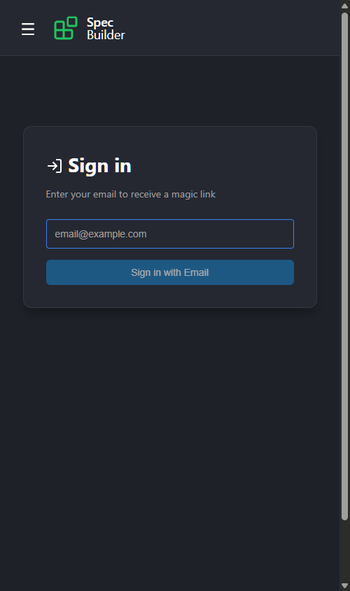
Open the app and enter your email address on the sign-in screen.
-
Tap Sign in with Email to receive a magic link.
-
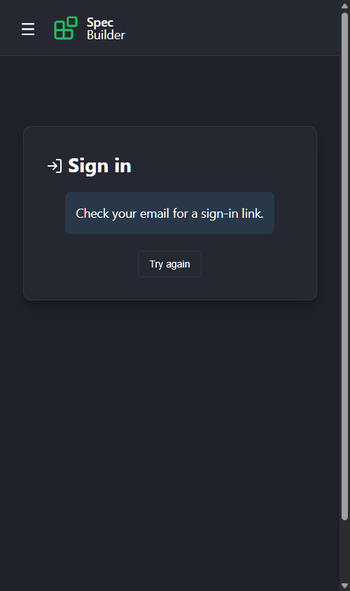
You'll see a confirmation that the email has been sent.
-
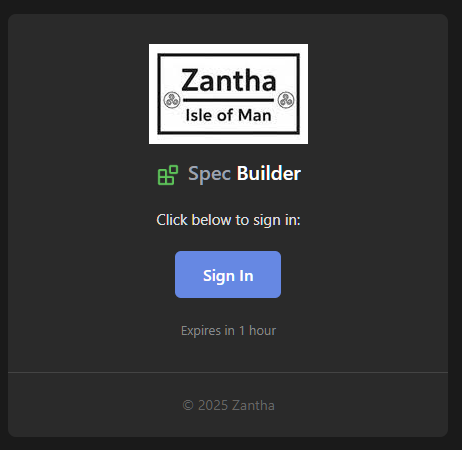
Check your email for a message from Spec Builder. The email will look like this:
Tip: If you don't see the email within a few minutes, check your Spam or Junk folder.
-
Tap the Sign In button in your email to access the app.
Dashboard
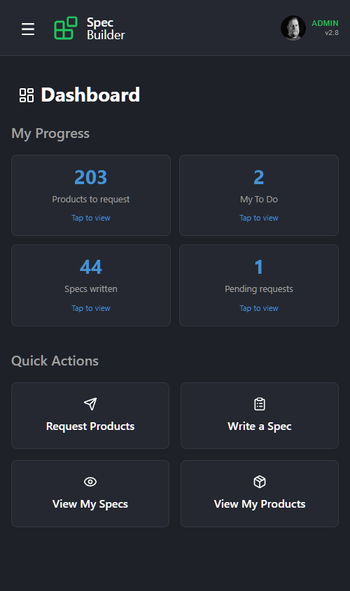
After signing in, you'll land on the Dashboard. This is your home screen showing your personal progress:
My Progress
- Products to request: Shows the total number of products in the catalogue that you haven't reviewed yet.
- My To Do: The number of specs currently assigned to you. These are your top priority.
- Specs written: A count of all the specifications you have successfully submitted.
- Pending requests: The number of product requests you have submitted that are waiting for approval or delivery.
Quick Actions
- Request Products: Jump straight to the product catalogue to find new items.
- Write a Spec: Go directly to your active To Do list.
- View My Specs: Browse your history of completed specifications.
- View My Products: See a list of all products you have marked as received.
Navigation
Tap the menu icon (☰) in the top-left corner to open the navigation menu.
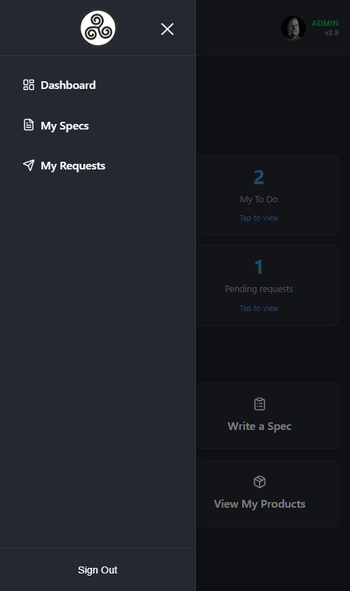
From here you can access:
- Dashboard: Return to the home screen.
- My Specs: Manage your writing tasks and view completed work.
- My Requests: Browse the catalogue and track your product orders.
- Sign Out: Log out of your account safely.