Requesting Products
The product request workflow is designed to help you get the products you need to write specifications. Here is the general flow:
- Select products you want to review.
- Submit a request for approval.
- Wait for Kay to process the request.
- Track the status of your items.
- Receive the products and start writing specs.
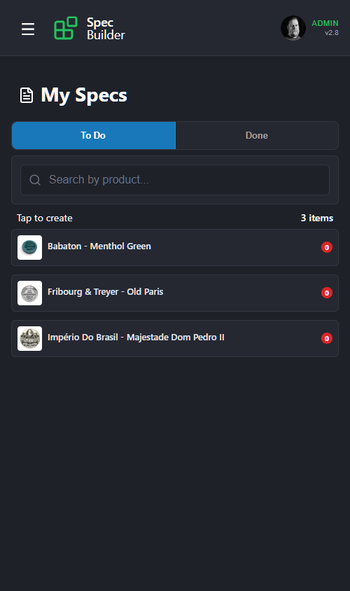
Already own a product? If you already have a product in your collection and just want to write a spec for it, see the "I Already Have This" option below.
1. Select Products
Navigate to My Requests and ensure you are on the To Do tab.
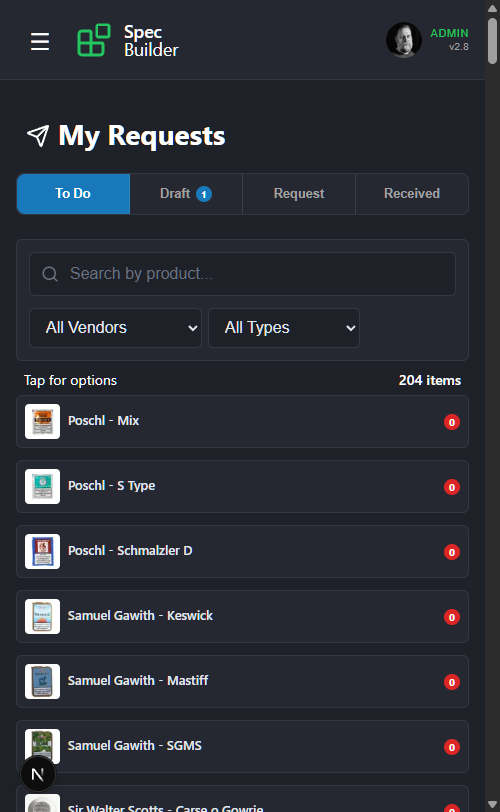
- Browse the list or use the search bar/filters.
- Tap any product to see your options.
When you tap a product, you'll see two choices:
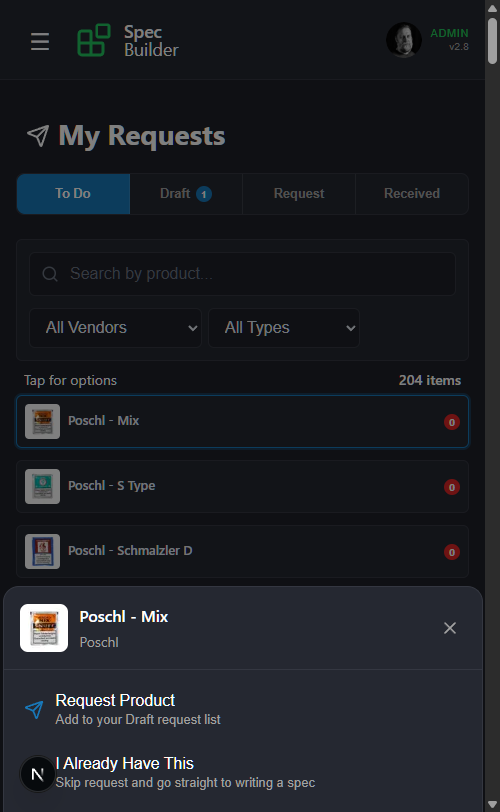
- Request Product – Adds the product to your Draft list for approval.
- I Already Have This – If you already own this product and don't need to request it, choose this option. The product will skip the request process entirely and go straight to your My Specs → To Do list so you can write a spec immediately.
After selecting an option, the product will disappear from the To Do list. You'll also notice the Draft tab shows a badge with the number of items waiting to be submitted.
2. Review Draft
Switch to the Draft tab to review your selection.
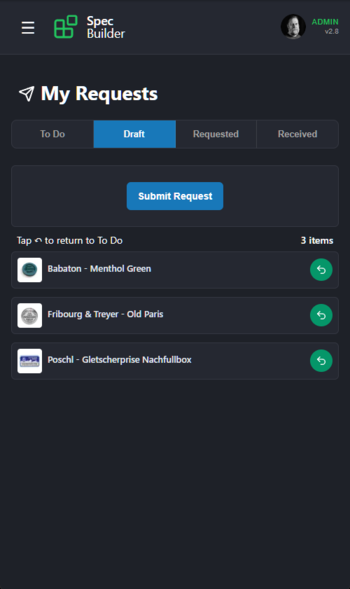
- You can remove items to return them to the To Do list.
- When ready, tap Submit request to send your request for approval.
3. Approval Process
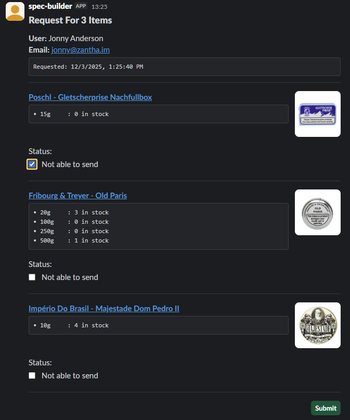
Once submitted, your request is sent directly to Kay via Slack. You do not need to do anything at this stage.
Kay will review the stock levels for your requested items.
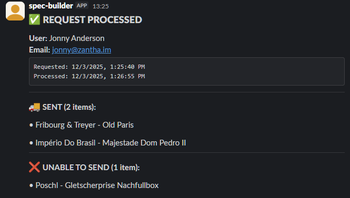
- Approved items will be prepared for shipment.
- Unavailable items will be marked accordingly.
Behind the Scenes: Here is what Kay sees in Slack when processing your request. You won't see this, but it shows how your request is handled.
4. Track Status
In the Request tab, you can track the status of your items. The tab badge shows how many items are awaiting approval.
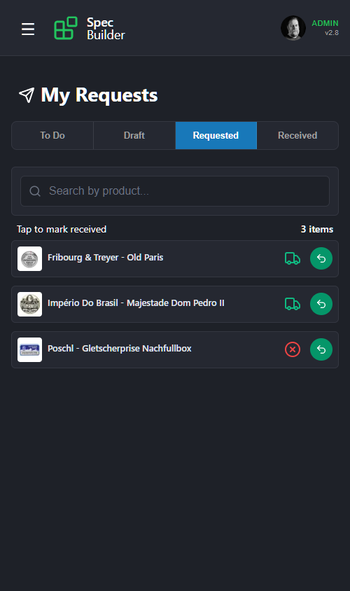
- 🕒 Pending (Clock): Your request has been sent and is waiting for Kay to review it.
- 🚚 Sent (Green Truck): Good news! The item is in stock and on its way to you.
- ❌ Unavailable (Red Cross): The item is currently out of stock. Tap the return icon (↶) to send it back to your To Do list so you can request it again later.
5. Mark as Received
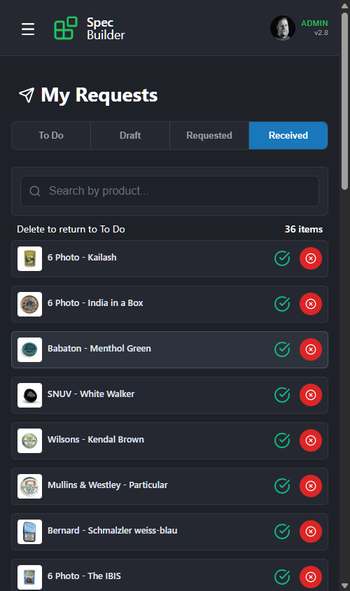
When your package arrives, go to the Request tab and tap each product that you received. This confirms delivery and moves them to your Received list.
6. Write Specs
Once marked as received, the products will automatically appear in your My Specs -> To Do list, ready for you to write specifications.